
The SiteMap® mobile app puts your entire project in the palm of your hand. This app is for field teams that need interactive maps, organized records, and real-time collaboration. You can work without being tied to a desktop. This guide leads you through everything, from signing in to advanced features. You’ll learn to capture accurate data and keep your projects moving forward.
Watch the on-demand webinar and explore how the SiteMap mobile app turns your field records into interactive GIS solutions.
What the SiteMap® Mobile App Does for Your Project
The SiteMap mobile app is your go-to tool for accessing your SiteMap environment anytime, anywhere. Wherever you go, your interactive maps, drawings, and records go with you. You can check conditions, gather new insights, and keep your team aligned. There’s no waiting for office updates.
Your device’s camera, GPS, and secure login work together. This means every observation is date-stamped, linked to your name, and organized for GIS and digital twin workflows. Teams typically begin by opening active job postings. They then switch between map and list views to gather points, lines, polygons, photos, and notes. The app syncs in the background while you work. This keeps your records accurate and ready for review in the office.
Install and Sign In
Getting started is simple. First, download the SiteMap mobile app from your organization’s approved app store. Once installed, open the app and sign in using your corporate credentials. If your company uses single sign-on, you will only need to approve access the first time; after that, it’s seamless.
The app will request permission to use your location, camera, and local storage. Grant these so the software can place features on the map and cache data for offline work. This lets you keep working even when connectivity may be limited.
If your IT team manages your device, the app follows security policies like biometric unlock and encrypted storage. That way, your project records stay protected without any extra steps on your part.
Understanding the Home Screen
Your home screen is your command center in the field. When you sign in, you’ll see a searchable list of projects and jobs your account can access. Use the search bar to filter by project name, client name, or job number so you can jump straight to the right job.
Each project tile has a badge. This badge indicates if the content is stored offline on your device. At the bottom, the tab bar gives you quick access to Home, Map, Capture, and Sync. This layout lets you switch between browsing and collecting. It keeps you on track, even when you’re short on time.
How to Choose a Job
Tap a project to view its jobs. Each job tile shows the title, location, status, and last sync time. This way, you can always tell if your device has the latest updates. If your role includes editing, you’ll see an interactive map that centers on the site boundary. This lets you start capturing data immediately. If you’re in view-only mode, the capture tools are hidden. But you can still drop temporary pins for your personal notes. These notes remain private until you choose to promote them to shared records.
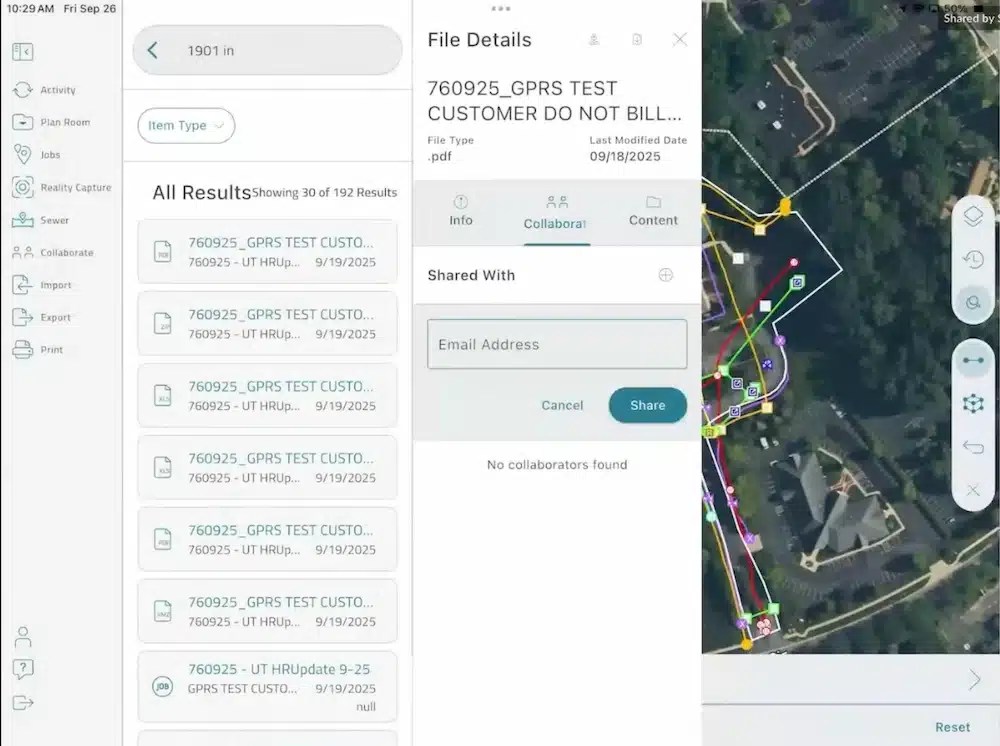
The SiteMap mobile app makes collaboration simple. Enter an email address in the “Shared With” field and click Share to give teammates instant access to your utility maps and project files.
Navigate the Map
The map view is where most of your work happens. You will find tools to explore, capture, and verify site details.
The right toolbar gives you quick access to:
- Layers Panel: Toggle base maps, imported layers, and utility layers. Use the eyeball icon to turn layers on or off.
- Measure Tool: Take quick distance estimates by tapping points or edges.
- Settings: Switch to low-memory mode if your device is running multiple apps.
Color-coded lines follow 811 standards. This makes it easy to spot utilities quickly.
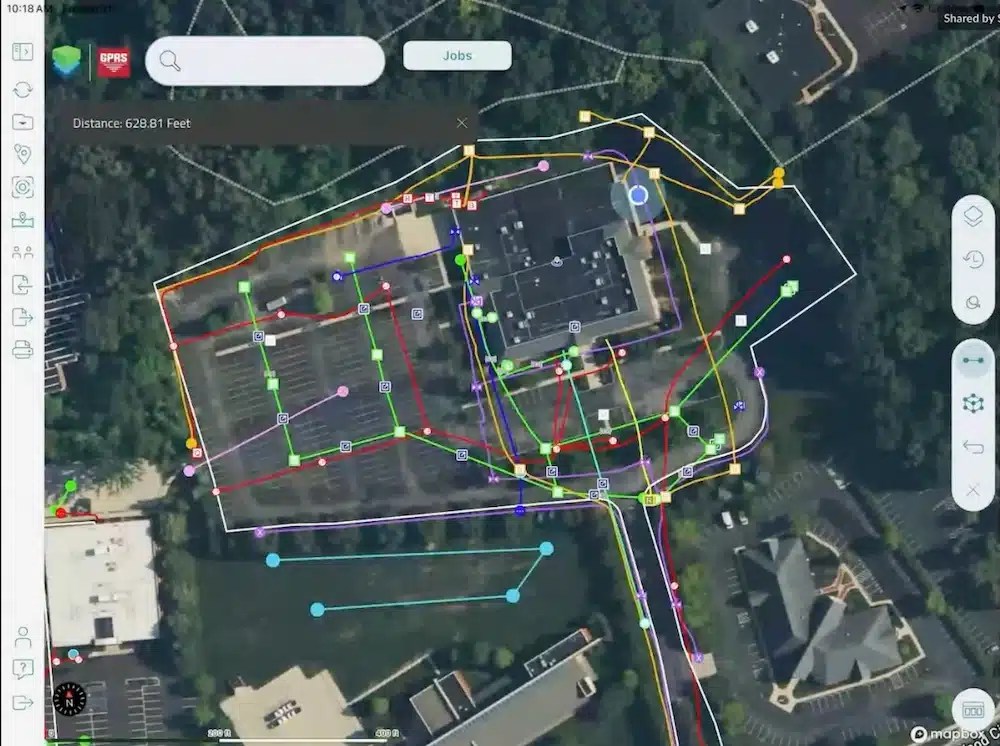
Use the SiteMap mobile app’s map view to explore, capture, and verify site details. You can toggle layers, measure distances, and adjust settings for clear utility identification.
Capture Points, Lines, and Polygons
When you’re ready to start mapping, choose the geometry type from the capture tray. The workflow is for real-world field conditions where accuracy and speed need to work together.
Points: Tap once on the map or use your device’s current location. The attributes panel will open so you can fill in details like asset type, material, and condition. Attach photos or short videos for context. If the asset has a tag or barcode, scan it and store it as a searchable attribute.
Lines: Lines represent linear assets such as pipes, conduits, or fence runs. Start the line, then walk or tap to add vertices along the route. Finish when you reach the endpoint. Add attributes like diameter, material, and depth.
Polygons: Polygons are perfect for slab areas, restricted zones, or landscaping features. Tap to place vertices and outline the shape. The app calculates area and perimeter on the spot, so you can verify quantities before leaving the site.
Every geometry type supports attachments. Photos store orientation, time, and location. To balance quality with upload speed, videos undergo compression. Notes support rich text, so you can add checklists or copy safety items from your project templates.
Work Offline with Confidence
Fieldwork often takes place in basements, tunnels, or remote spots. In these areas, service can be unreliable. Before heading on-site, open the job, tap Sync, and choose Download for Offline. The app will display basemaps, job layers, and any reference drawings your role allows.
While offline, your edits queue locally and display with a small pending badge. You can still search features because the index is stored on your device. When you regain service, the app syncs automatically. If there’s an edit conflict, you’ll get a clear prompt. You can choose which version to keep or merge the attributes when possible. The result is a clean chain of custody for your records, even when connectivity is poor.
Attach Drawings and Field Documents
Need quick access to drawings or permits while you’re on-site? The SiteMap mobile app makes it easy. You can attach PDFs at both the job level (for the entire project) and the feature level (for specific assets). Open the Documents tab within a job to view plan sets. From there, you can pinch to zoom, jump to a specific sheet by name, and drop bookmarks so you can return to important pages in seconds.
If you notice a discrepancy between the drawing and what you see in the field, add a markup layer on the map and link the sheet reference in the attributes. This makes your observations interactive and linked to the exact spot. Your office team can then confirm and update right away, without waiting for emails.
Photos, Videos, and Rich Media
They say a picture is worth a thousand words, and in the field, that can often be true. The SiteMap mobile app makes it easy to capture visuals that tell the full story. The camera tool launches with project-specific presets. You get features like date stamp overlays and orientation lock. This way, your media stays consistent.
Use burst mode to document a trench before backfilling or record a short video for extra context. Videos are kept short for easy uploads. Each file links to its feature and timestamp for accuracy.
Later, when you review the job on a desktop, your media appears in the feature panel and project gallery. Stakeholders can sort and filter these files, making it simple to find what matters most. This approach combines fast mobile capture with reliable records that everyone can trust.
Search and Filter
As your project grows, finding the right feature becomes essential. Use the search bar to locate features by ID, asset type, or any attribute. You can use filters to narrow the map. For example, show only water assets within a date range or features added during your visit.
You can save filters, so they travel with the job, making it easy for teammates to reuse them. These tools keep your map active and your site visits efficient. So, you can spend less time searching and more time working.
Collaborate with Comments and Tasks
Collaboration happens right where the work does. Every feature supports comments that your team can see. Mention a teammate to let them know you need a review, or turn a comment into a task with a due date and status. The app tracks who created the task and who resolved it, giving you a clear audit trail.
This lightweight project management solution minimizes the need for different systems. It keeps conversations focused on the exact location and asset. It’s a simple way to keep everyone aligned without adding extra steps.
Sync Behavior and Version History
Syncing is designed to be predictable and stress-free. When you tap Sync, the app sends your pending edits. Then, it pulls updates made since your last connection. If an attribute changes on both your device and the server, the app flags the conflict. You can choose which version to keep or merge the attributes if possible.
Every change is tracked in version history. Your compliance team can see what changed, when it changed, and who made the change. This is critical for audit requirements and for reconstructing decisions later. You get transparency without extra effort.
Export Options and Delivery to Enterprise Systems
The mobile app focuses on field excellence. The SiteMap desktop platform handles exports for analytics and archives. From the app, you can request an export for any job. Choose formats like PDF or JPEG for quick sharing, or use the desktop platform for advanced formats like GeoJSON, File Geodatabase, and shapefiles.
If your organization uses automated exports, your edits go into nightly packages. Then, your GIS team can add them to enterprise repositories. This is how mobile capture becomes a durable solution for asset management and long-term planning.
Integrate with GIS and Digital Twins
Your field edits are part of a connected system. This system drives GIS visualization, work orders, and long-term planning. Because attributes follow your organization’s schema, they map to layers and symbology in GIS without extra steps.
If your company uses a digital twin, those same features fill the twin’s scene. They can also trigger smart rules. For example, alerts can be sent when an asset enters a restricted zone. The key is consistency at the point of capture. When you structure your data correctly in the field, later steps happen automatically instead of being done manually.
Reality Capture and Sewer Layer
The app also gives you access to advanced features like Reality Capture and the Sewer Layer. The Reality Capture feature lets you see laser scans, photogrammetry, and 3D point clouds on your mobile device. You can open mesh viewers and walkthroughs for a detailed look at your site.
The Sewer Layer stores storm and sanitary line data, including NASCO-certified video pipe inspection reports. You can see flow direction, pipe diameter, material, and depth. It’s all printable and shareable for easy teamwork.

The SiteMap Sewer layer provides detailed pipe condition data cataloged to NASSCO standards. It includes pipe features, flow direction, depth, and even video for each pipe segment.
Typical Field Day Workflow
A smooth day in the field usually follows a simple rhythm:
Start with a sync. The night before, download the job for offline use so you’re ready even if connectivity is spotty. When you arrive on-site, verify your location, capture features with the required attributes, attach photos, and add any tasks that need attention.
Sync when you can. At lunch or whenever you find service, sync to push your edits and pull any updates. Before you leave, run a quick filter to confirm you’ve collected every planned asset; then sync one last time.
Back at the office, your exports are already queued. Supervisors can review version history, confirm tasks, and publish maps for stakeholders. Because your mobile capture followed attribute rules, the data merges into enterprise records and GIS analytics.
This workflow can reduce return visits and speed up the time from observation to decision, keeping your projects on schedule.
Want to dive deeper into the SiteMap mobile app? Watch the webinar replay to discover how easy it is to capture, upload, and visualize utility data on the go.
How SiteMap® Supports Your Project Outcomes
SiteMap brings all your infrastructure data together in one platform, so you always have a clear view of what’s above and belowground. From photogrammetry and virtual trench tours to video pipe inspections and utility maps, everything lives in one connected system. No more scattered files or siloed tools. Just clarity, connection, and confidence for you and your team.
The mobile app puts that power in the palm of your hand. Browse jobs, capture points, lines, and polygons, attach rich media, and sync instantly with the broader SiteMap platform. Your data turns interactive and is ready for planning tools.
SiteMap gives you a straight path from observation to decision. When your teams collaborate on a single platform, timelines get shorter. Rework vanishes, and everyone can rely on the data powering your projects.
Click below to schedule your live, personal SiteMap demo today!
FREQUENTLY ASKED QUESTIONS
How do I export data from SiteMap?
Exporting is simple. From your Digital Plan Room or Map Viewer, you can download files in formats like DWG, PDF, or orthophotos. This lets you take interactive maps and records from SiteMap into CAD, GIS, or other software without disrupting your workflow.
Can SiteMap scale as my portfolio grows?
Yes. SiteMap was created to accommodate scalability. Whether you oversee a single facility or a nationwide portfolio, the platform merges your data into one interactive system. You can keep adding new projects using the same workflow. This lets you expand without changing your process.
How secure are my records in SiteMap?
SiteMap uses a cloud-based setup with controlled access permissions, so your data stays safe and recoverable. All files, maps, and attachments are stored in one central location. This makes collaboration simple and cuts the risk of losing data.